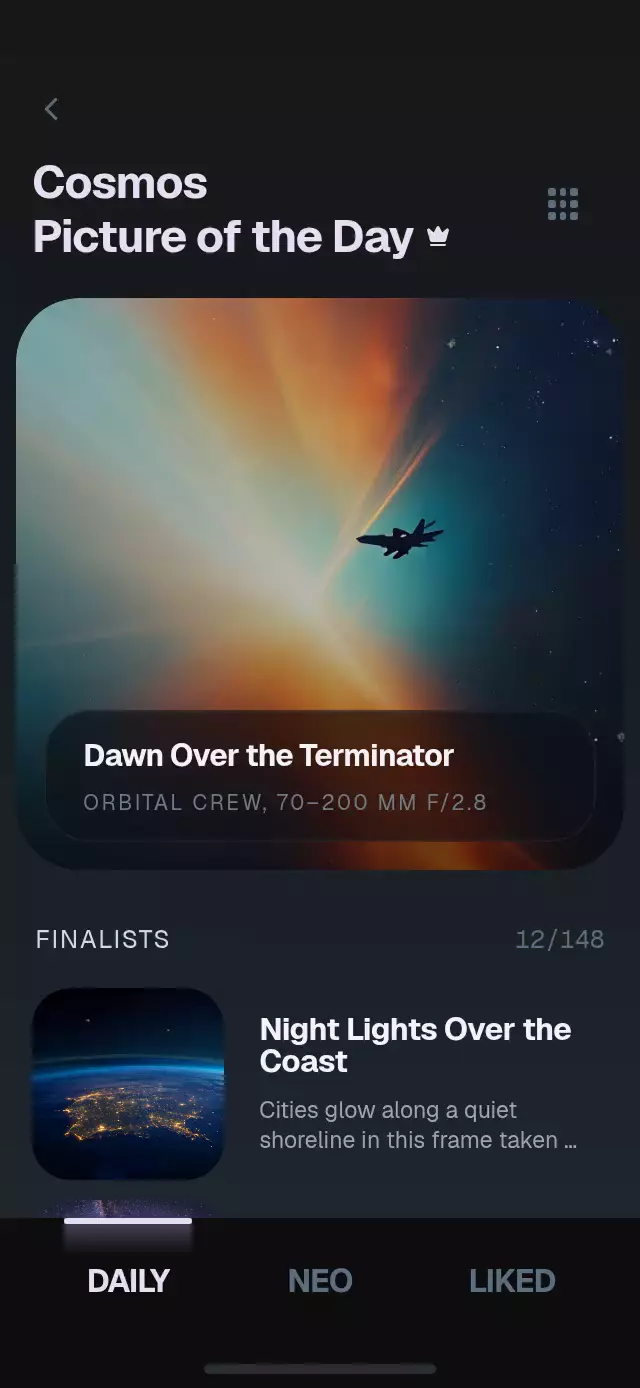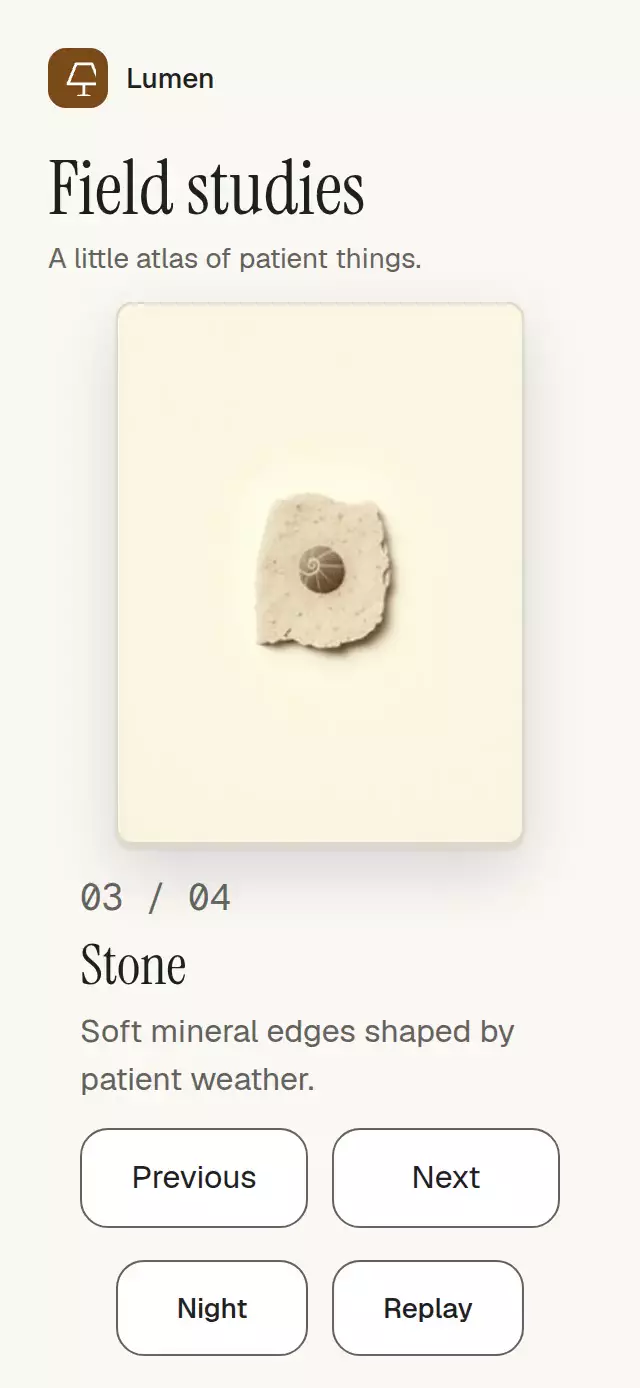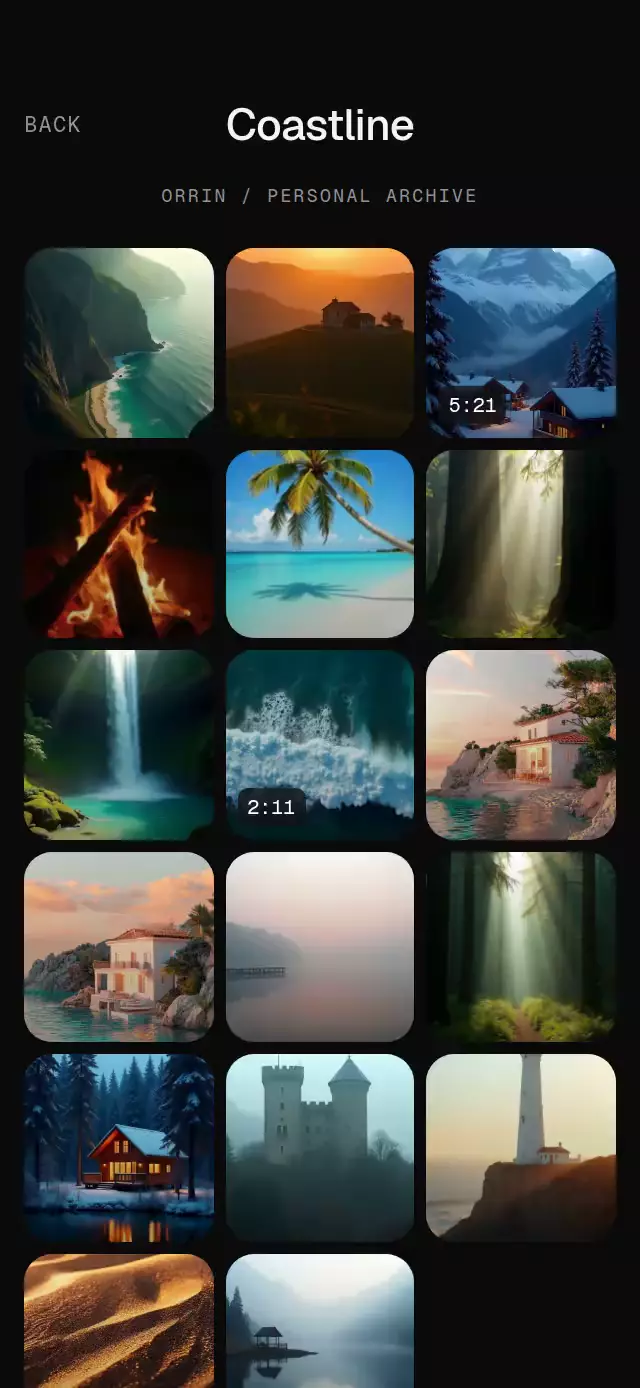
About this animation
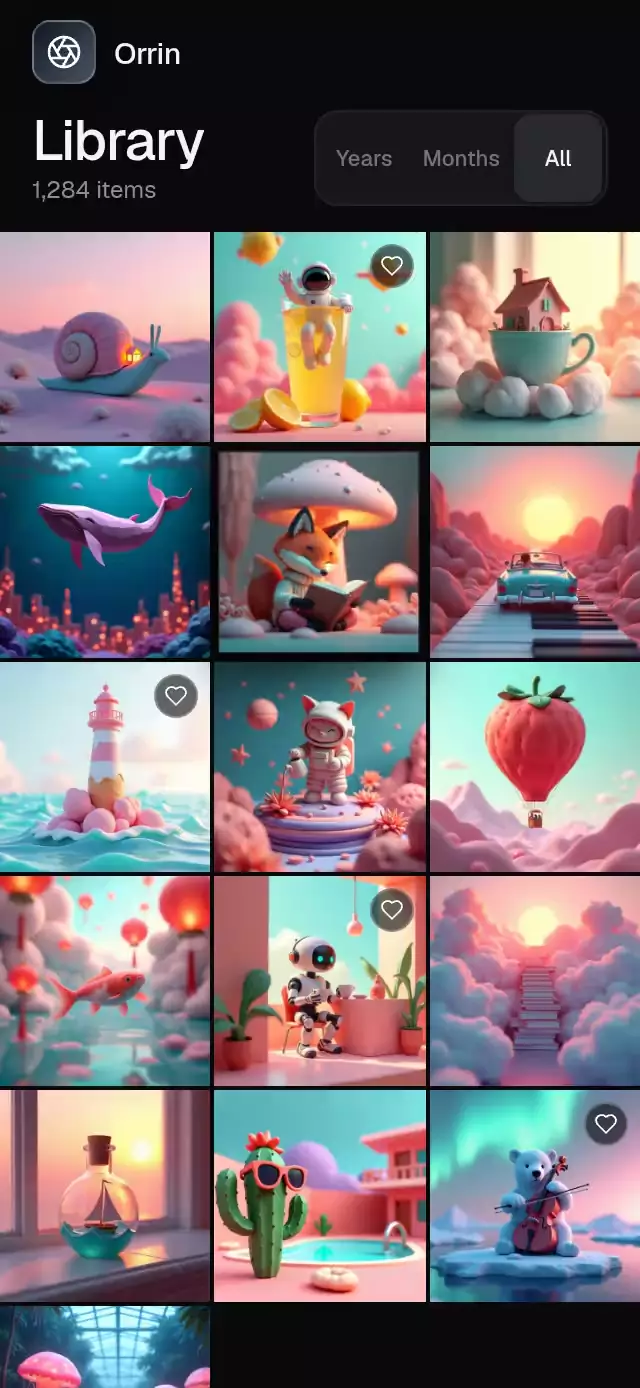
This React Native context menu expands a photo from its measured gallery cell into an elevated preview with a glass action list. A long press opens the preview, continued movement scans menu rows, and release chooses the active action. A regular tap and a named accessibility action open the same menu, so holding is optional. The host supplies local images and receives the chosen action and image index. The closing spring returns the preview to its original thumbnail, while a labeled backdrop provides dismissal. Use it for a gallery interaction with spatial continuity; it is a custom Expo scene, not a wrapper for a platform context-menu API.
When to use it
- Preview gallery images before choosing an action.
- Scrub contextual actions with one continuous gesture.
- Offer tap access alongside a long press.
Related guides
A held-photo preview with drag-through menu actions, with configurable images, title, background color, and fonts.
How it works
- The component measures its own gallery cells, so the selected image can begin at the exact thumbnail position without using screen dimensions.
- The pressed cell and the overlay container are measured in window coordinates in the same UI-thread frame. Subtracting the overlay origin captures the cell position directly, including the header and current scroll offset. One continuous
progressshared value drives the preview's position, size, radius, background focus, and menu materialization. - A 300 ms long press advances that same progress to a small peek at 0.96 scale, then continues toward the open state with an interruptible spring. The image has a fixed layout and travels with transforms, avoiding per-frame image resizing.
- Continued finger movement maps to menu rows and springs a translucent highlight between them; release executes the active row.
- The preview and glass layers stay mounted after their first use. The closing spring stops exactly at zero without overshooting, so the preview returns to the measured thumbnail position and both swap visibility on the same UI-thread frame. Interrupted closes resume from the current progress; stale completion callbacks cannot hide a reopened menu. Short containers place the menu beside the preview to keep all actions reachable.
- The forwarded ref exposes
open(index?),close(), andplay(index?), letting a product tour reproduce the complete hold, scan, and Favorite sequence. Every close path has a 600 ms fallback that settles progress and releases the overlay if the animation completion callback is lost. Reopening cancels that fallback. Playback starts its timers after the measured selection is committed, and late measurements cannot reopen a dismissed menu. Autoplay chooses Favorite at 1,770 ms after preparation, allows up to 600 ms to close, rests for 1,500 ms, then plays another thumbnail.
Install
npx expo install @shopify/react-native-skia expo-blur expo-image expo-linear-gradient react-native-gesture-handler react-native-reanimated react-native-workletsIcons: Lucide (ISC).
Usage
import PeekContextMenu from './PeekContextMenu';

export function PhotoLibrary() {
  return (
    <PeekContextMenu
      images={[require('./photo-1.jpg'), require('./photo-2.jpg')]}
      onAction={(action, index) => handlePhotoAction(action, index)}
    />
  );
}
Customize the product copy and styling:
<PeekContextMenu
  images={photos}
  favoriteIndices={[1, 4]}
  brandName="Field Notes"
  title="Moments"
  itemCountLabel="864 items"
  backgroundColor="#09090B"
  fontFamily="YourSansFont"
  mediumFontFamily="YourSansMediumFont"
/>
Props
| Prop | Type | Default | Description |
|---|---|---|---|
images | ImageSourcePropType[] | Required | Square gallery images. |
favoriteIndices | number[] | [] | Indices rendered with a favorite badge. |
brandName | string | 'Gallery' | Product name shown beside the brand tile. |
title | string | 'Library' | Main gallery heading. |
itemCountLabel | string | '1,284 items' | Supporting item count. |
fontFamily | string | undefined | Font family for interface copy. |
mediumFontFamily | string | undefined | Font family for emphasized labels. |
backgroundColor | string | '#09090B' | Background color. |
onAction | (action: PeekContextMenuActionId, index: number) => void | undefined | Called after a menu action is chosen. |
style | StyleProp<ViewStyle> | undefined | Optional style for the outer container. |
testID | string | undefined | Test identifier applied to the outer container. |
Why this one
The preview does not simply pop into the center: it preserves spatial continuity from the exact gallery cell. The same gesture opens and scrubs the menu, a spring-following highlight makes the current choice unmistakable, and a concise toast closes the feedback loop. The full interaction also works by tap and through a named accessibility action.
Compatibility
- Expo SDK 58
- React Native 0.88
- Reanimated 4.7, Worklets 0.13, and Skia 2.14
- iOS: supported
- Android: supported
- Web: supported
- Works in Expo Go because the native dependencies are included in Expo SDK 58
Accessibility
Every gallery image and menu row is a labeled button. Gallery images expose “Show actions” as their activation action, so holding is never the only path. Tap opens the same menu, the backdrop is a labeled close target, and toast feedback is announced through a polite live region. Reduced Motion replaces growth and spring travel with short fades.
Customization notes
Movement follows gestures, scroll position, or interruptible spring physics. A global duration is not exposed; reduced-motion fades retain their short fixed timing.
FAQ
- Is long press the only way to open the context menu?
- No. Tap opens the same menu, and each gallery image exposes a named Show actions accessibility action. Menu rows and the dismissal backdrop are labeled buttons.
- Does the component run photo actions for me?
- It calls onAction with the selected action ID and image index. The host implements sharing, deletion, or other real operations.
- What dependencies and platform checks does it need?
- It uses Skia, Expo Blur, Expo Image, Expo Linear Gradient, Gesture Handler, Reanimated, and Worklets. Read its README for setup.